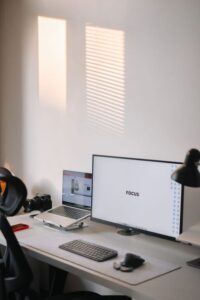

Screens are part of daily life, from work and school to entertainment and staying in touch. While regular screen use is not usually harmful by itself, long periods of focusing on a nearby display can leave your eyes feeling tired, dry, or uncomfortable. Bright screens, glare, poor posture, and infrequent breaks can all add to the problem.
The good news is that a few practical habits can make screen time more comfortable. Use the following tips to protect your eyes and support healthier digital routines.
Follow the 20-20-20 rule
One of the simplest ways to reduce eye strain is to take regular distance breaks. Try the 20-20-20 rule:
– Every 20 minutes
– Look at something about 20 feet away
– For at least 20 seconds
Looking into the distance allows the muscles used for close focusing to relax. You can look out a window, across the room, or down a hallway. Set a gentle reminder on your phone, computer, or smartwatch if you often lose track of time.
For longer work sessions, add a few minutes away from the screen every hour. Stand up, stretch, refill your water bottle, or walk around the room.
Adjust your screen position
The position of your monitor, laptop, or tablet can affect both eye comfort and posture. Use these general guidelines:
– Place a desktop monitor about an arm’s length away.
– Keep the top of the screen at or slightly below eye level.
– Position the center of the display a little below your natural line of sight.
– Keep laptops on a stable surface instead of using them on your lap for long periods.
– Hold phones and tablets at a comfortable distance rather than bringing them very close to your face.
A screen that is too close may encourage intense focusing, while a screen that is too far away can cause squinting. Adjust the distance until text is easy to read without leaning forward.
Reduce glare and reflections
Glare from windows, overhead lights, and glossy surfaces can make your eyes work harder. To reduce reflections:
– Place your monitor perpendicular to windows rather than directly in front of or behind one.
– Use blinds or curtains to control bright daylight.
– Turn off or reposition lights that reflect on the screen.
– Clean the screen regularly with a soft, suitable cloth.
– Consider a matte screen protector if reflections remain a problem.
Avoid working in a completely dark room with only a bright screen providing light. A small lamp or soft room lighting can create a more balanced environment.
Set comfortable brightness and contrast
Your screen should not look dramatically brighter or darker than the surrounding room. If the display feels like a light source shining into your eyes, lower the brightness. If text appears washed out or difficult to read, increase the contrast or adjust the room lighting.
Many devices include automatic brightness settings that respond to the environment. These can be useful, but check them occasionally to make sure the screen remains comfortable.
You can also try:
– Increasing text size instead of moving closer to the screen.
– Using dark mode if it feels more comfortable for your eyes.
– Choosing a simple background with clear text.
– Adjusting color temperature in the evening to make the display appear warmer.
There is no single best setting for everyone. Comfort and readability are the most important guides.
Remember to blink
People often blink less when reading, gaming, or concentrating on a screen. Blinking helps spread moisture across the surface of the eyes, so reduced blinking may contribute to dryness or a gritty feeling.
Make a conscious effort to blink fully and regularly. During breaks, close your eyes for a few seconds or look away while relaxing your face. If indoor air feels dry, a humidifier may improve general comfort, especially during heating or air-conditioning seasons.
Avoid directing fans, heaters, or air-conditioning vents toward your face. Moving air can make the eyes feel dry more quickly.
Use good reading habits
Small text and crowded layouts can encourage squinting and leaning forward. Make digital content easier to read by:
– Increasing font size.
– Choosing clear, easy-to-read type.
– Using adequate line spacing.
– Zooming in on documents when needed.
– Holding printed and digital reading material at a comfortable distance.
– Taking breaks during long reading sessions.
If you regularly struggle to read normal-sized text, even after adjusting the display, consider arranging an eye examination. A professional can check whether your vision needs have changed.
Create an eye-friendly workspace
A comfortable workspace supports your eyes, neck, shoulders, and back at the same time. Keep your chair and desk at a height that allows you to sit upright without leaning toward the screen.
Your workspace should include:
– A chair that supports a comfortable, upright position.
– Feet resting on the floor or on a footrest.
– A screen centered in front of you.
– Frequently used items within easy reach.
– Enough room to change position during the day.
Good posture does not require staying perfectly still. Change positions, stand when possible, and avoid holding your head or neck in one position for hours.
Be mindful of phone and tablet use
Small screens are often held closer to the face than desktop monitors. This can increase visual effort during extended use. When possible, increase text size, hold the device farther away, and take regular breaks.
Avoid long periods of screen use in moving vehicles or while lying in an awkward position. These situations can encourage close viewing, poor posture, or discomfort. If you use a phone before bed, dim the display and choose a comfortable viewing position.
Plan screen-free periods
Eye-friendly screen habits are easier when breaks are part of your schedule. Try adding screen-free activities throughout the day, such as:
– Taking a walk.
– Eating meals away from devices.
– Listening to music or a podcast.
– Doing a hands-on hobby.
– Spending time outdoors.
– Reading a printed book with suitable lighting.
Outdoor time can also provide a useful change in viewing distance and surroundings. The goal is not to avoid screens completely, but to balance close-up digital tasks with regular rest.
Pay attention to ongoing discomfort
Occasional tiredness after a long screen session is common, but persistent or worsening discomfort should not be ignored. Take note of symptoms such as ongoing blurry vision, frequent headaches, eye pain, unusual sensitivity to light, or changes in how you see.
If discomfort continues despite regular breaks and workspace adjustments, schedule an appointment with an eye care professional. Seek prompt attention for sudden or severe changes in vision.
Make eye comfort a daily habit
Protecting your eyes during screen time does not require complicated equipment. Start with regular distance breaks, a comfortable screen position, reduced glare, readable text, and frequent blinking. Combine these habits with good posture and screen-free periods throughout the day.
Small adjustments can make long work, study, and entertainment sessions more comfortable while helping you build a healthier relationship with your devices.